

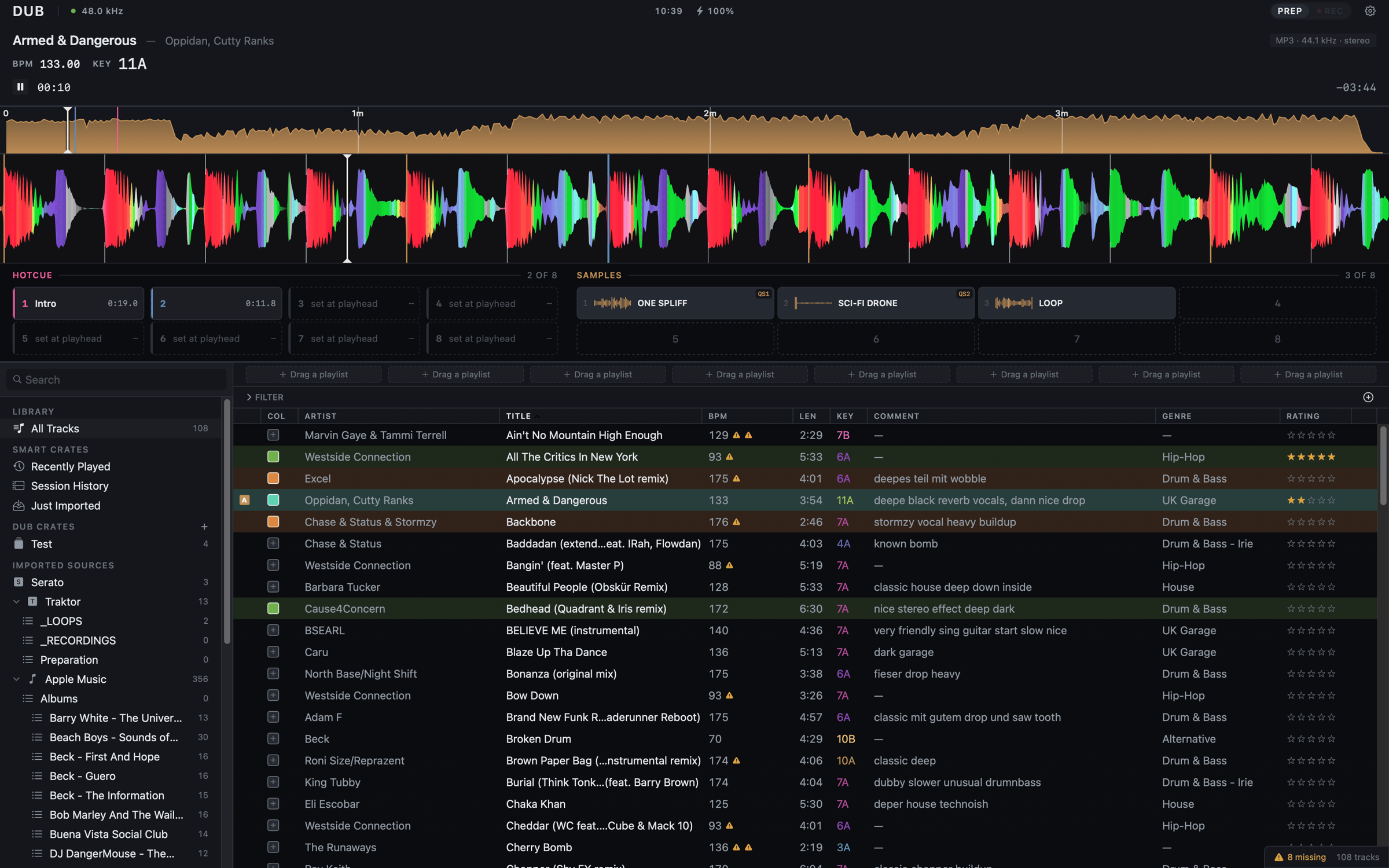
Getting to Prep
Dub picks the surface from your hardware:- No DJ interface plugged in: Dub opens Prep.
- A DJ interface plugged in: Dub opens the two-deck Performance surface. Plug one in while you’re in Prep and Dub moves to Performance; unplug it and Dub falls back to Prep.
Switching by hand
With Vinyl recording on in Preferences ▸ Vinyl, the top bar shows a PREP · REC · PERF switch. It lets you go into Prep without unplugging your interface. PERF only shows while a DJ interface is connected, and REC is the way into ripping a record.What’s on the surface
From top to bottom:- The deck header: title and artist, BPM to two decimals, KEY, a Play/Pause button, and both the elapsed and the remaining time.
- The overview: the whole track. Click anywhere to jump there.
- The playing waveform, running left to right across the full width. Drag it to scratch-cue: drag left to play forward, right to play backwards, hold still for silence.
- HOTCUE and SAMPLES, side by side.
- The library, with the rest of the window.
Loading a track
Drag a track onto the deck, or select it in the library and press Space. In Prep the track starts playing as soon as it loads. Prep always lets you load onto the deck, even while it plays. There is no audience to protect.Setting cues
The HOTCUE bank has eight pads. An empty pad says set at playhead.
Cues are saved with the track and show up on the same track in
Performance. Hot cues, loops and the beat grid are covered in
Decks.
Fixing the grid
There is no beat-grid editor. To move the grid, set the 1 from the deck header’s BPM; see Decks.Loading samples
SAMPLES is the sampler’s eight slots. Drag a track from the library or a file from Finder onto a slot to load it, then click the slot to hear it. Right-click a quiet slot to rename it, tag it for Quick Scratch or unload it. The same slots fire in Performance; see Samples and siren.What Prep doesn’t have
- One deck only. Deck B is off.
- No FX. Echo out, the siren and Quick Scratch are things you do to a record in front of people, so they live in Performance.
- No map mode. MAP is a Performance control; Prep is worked with the mouse.
- No rack bar under the deck.
Prep plays on the Mac’s own output, not on your interface. To hear a
record through the rig, use Performance.